
Scan Aadhaar Card Both Sides Using Your Phone
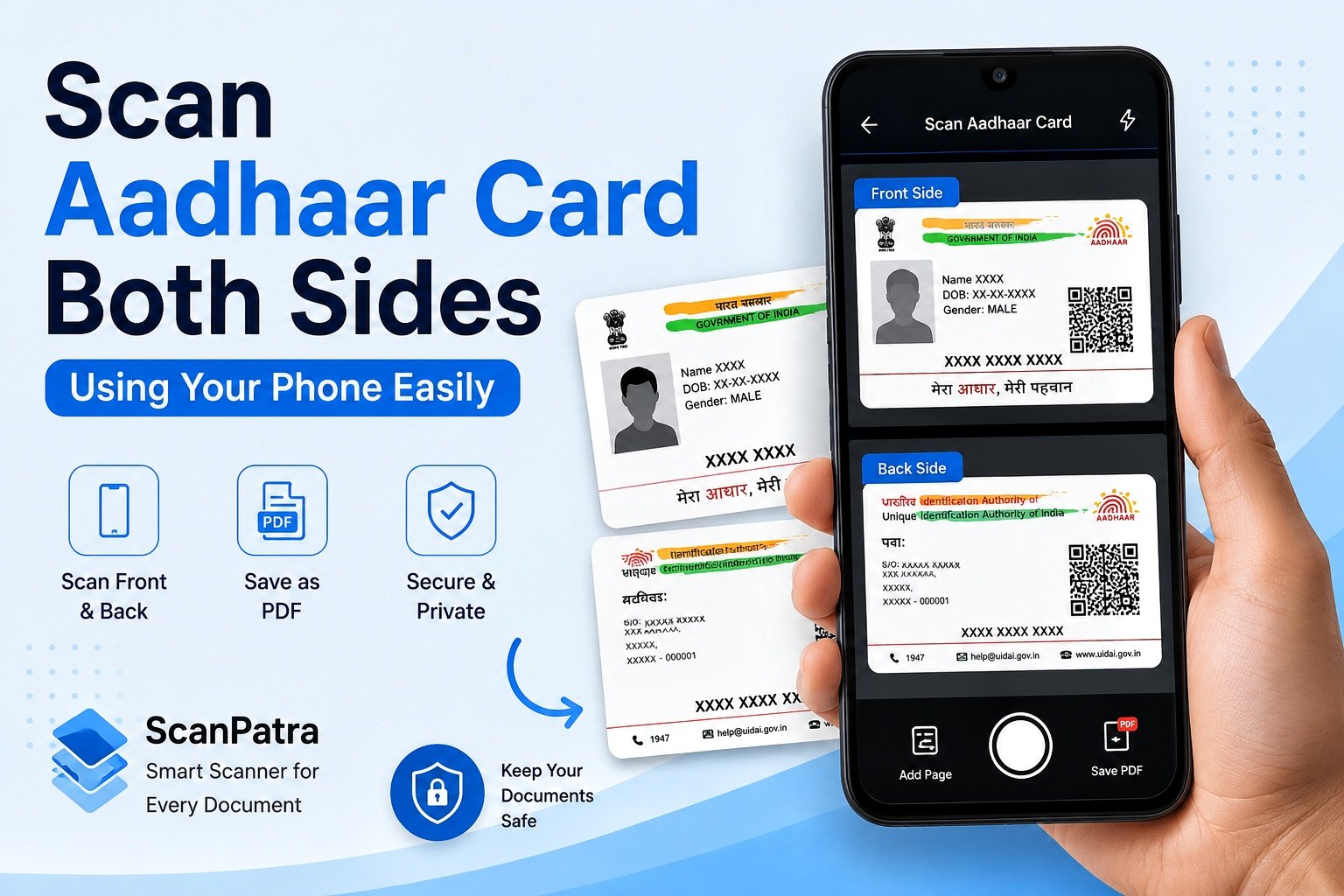
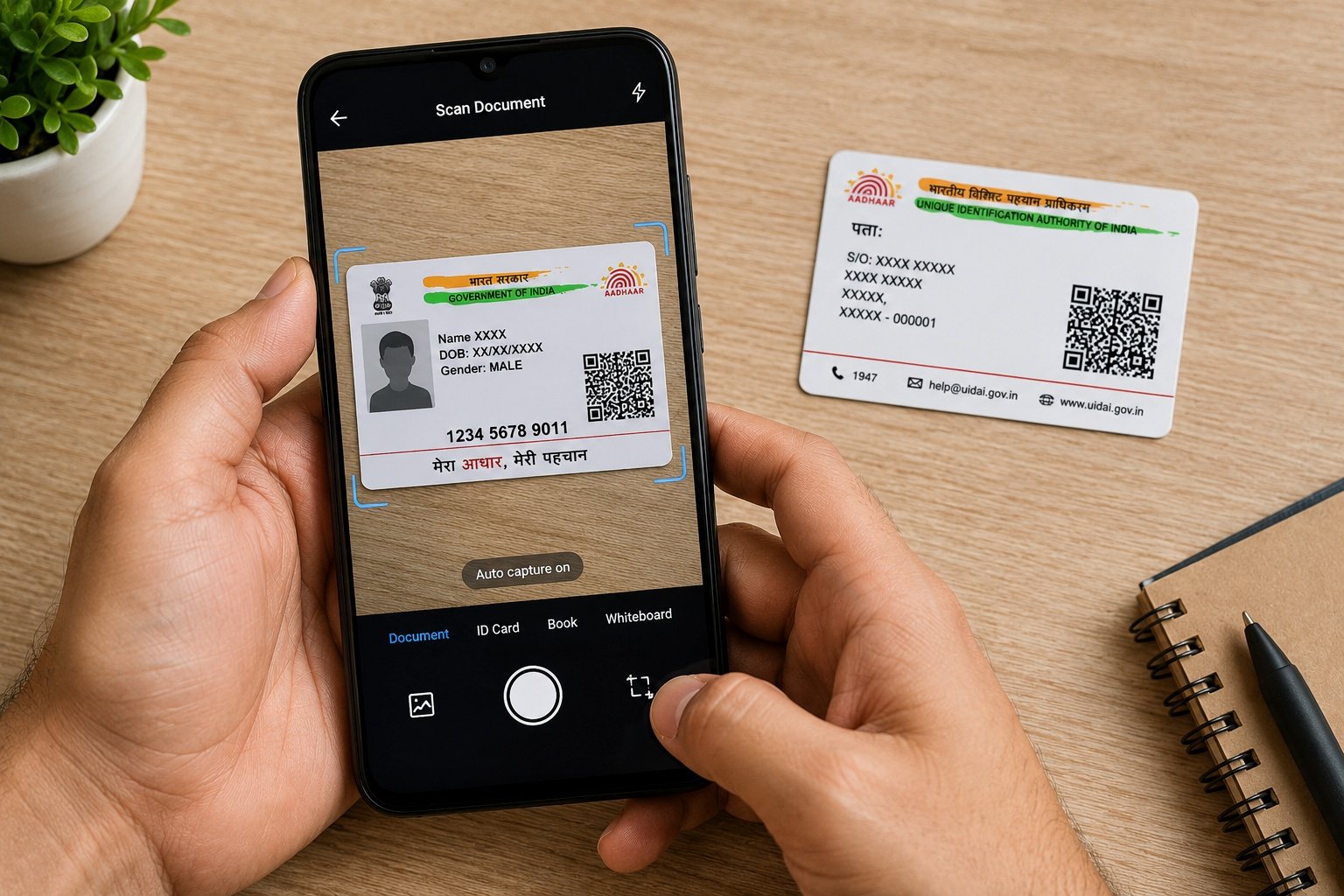
Need a digital copy of your Aadhaar card for online verification, admissions, banking, or government services? You can scan Aadhaar card both sides using your phone in just a few minutes. A document scanner app like ScanPatra lets you capture both the front and back of your Aadhaar card, enhance the image, and save everything as a single PDF for easy sharing or storage.
Keeping a scanned copy on your phone also helps when you need quick access to your identity document without carrying the physical card everywhere.
Why Scan Both Sides of Your Aadhaar Card?
The front and back of an Aadhaar card contain different information. Scanning both sides ensures you have a complete digital copy.
Some common situations include:
- Online KYC verification
- College or school admissions
- Job applications
- Government schemes
- Banking documentation
- Personal document backup
Tip: Store your scanned Aadhaar card in a password-protected folder if it contains sensitive personal information.
How to Scan Aadhaar Card Both Sides Using Your Phone
Follow these simple steps:
- Open ScanPatra on your Android phone.
- Tap Scan Document and open Multi Scan.
- Place the front side of the Aadhaar card on a flat surface with good lighting.
- Capture the image and adjust the crop if needed.
- Tap Add Page.
- Scan the back side of the Aadhaar card.
- Review both pages.
- Apply image enhancement if required.
- Save the document as a single PDF.
Your PDF will now contain both sides of the Aadhaar card in the correct order.
Tips for Better Scan Quality
For the clearest results:
- Use natural or bright lighting.
- Avoid shadows on the card.
- Place the card on a plain background.
- Hold the phone steady.
- Keep the camera lens clean.
- Ensure all four corners are visible before saving.
PDF or Image: Which Is Better?
| Format | Best Use |
|---|---|
| Applications, document submission, long-term storage | |
| JPG | Quick sharing or individual images |
If you're submitting documents online, PDF is usually the preferred format because both sides remain together in one file.
You may also find these guides useful:
- How to Merge PDF Files on Android
- Compress PDF on Android Without Losing Quality
- How to Organize Important Documents on Your Phone
Keep Your Aadhaar Copy Secure
Aadhaar contains personal information, so it's important to handle digital copies carefully.
Good practices include:
- Store documents in a secure folder.
- Delete blurry or duplicate scans.
- Share only when necessary.
- Review documents before sending.
- Lock your phone with a PIN, password, or biometric authentication.
If you need searchable text from scanned documents, read our guide on OCR for Scanned Documents.
Frequently Asked Questions
Can I scan both sides into one PDF?
Yes. Scan the front first, add another page, scan the back, and save both pages as a single PDF.
Will the scan be clear enough for online submission?
If the card is captured in good lighting and properly cropped, the resulting PDF is generally clear for document submission.
Can I edit the scanned Aadhaar card later?
Yes. You can crop, rotate, or enhance the pages before saving the final PDF.
Is it better to save as PDF instead of separate images?
For most official uses, yes. A single PDF keeps both sides together and is easier to upload or share.
Final Thoughts
Learning how to scan Aadhaar card both sides using your phone makes it easier to manage important documents whenever you need them. A clear, well-organized PDF saves time during applications and verification while helping you keep an accessible digital backup of one of your most important identity documents.